


 Crypto.
 Sobre
Sobre
 Passport
 Conference call
 send money
 Termos
 Privacidade
 Sierra market
Windows Firewall is Blocking QuickBooks: Complete Troubleshooting Guide
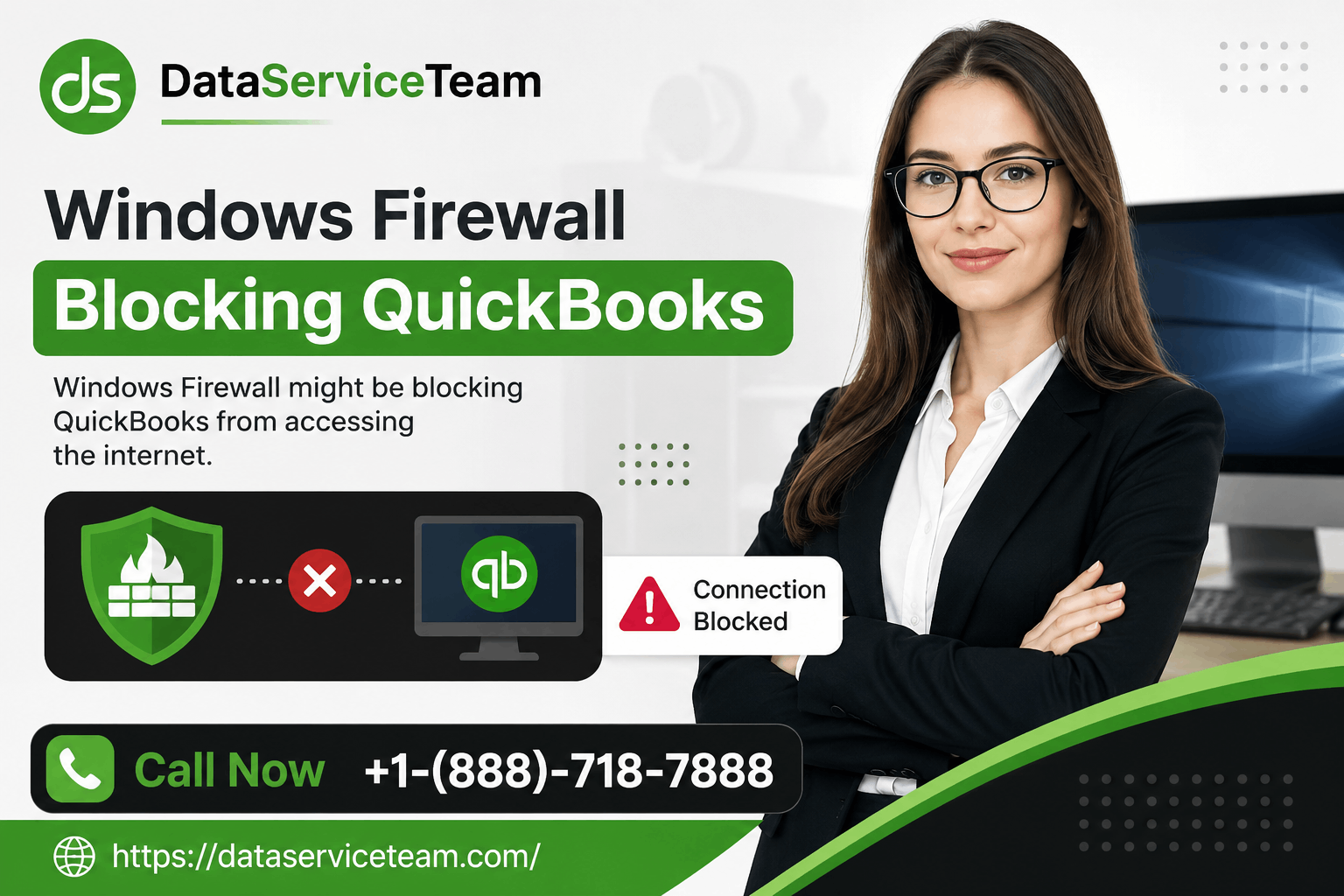
Few things bring accounting workflow to a screeching halt quite like the dreaded "Windows Firewall is blocking QuickBooks" error. Whether you're trying to open a company file, switch to multi-user mode, or simply process payroll, this Windows security feature can sometimes overstep its protective role and mistakenly block legitimate QuickBooks communications.
As a certified QuickBooks ProAdvisor, I've walked countless business owners through this exact frustration. The good news? This is one of the most common—and fixable—QuickBooks issues. This guide provides expert-approved troubleshooting steps that will have you back up and running quickly.
Why Does Windows Firewall Block QuickBooks?
Windows Firewall (now known as Windows Defender Firewall) acts as your computer's digital security guard, monitoring incoming and outgoing network traffic to protect against cyber threats . It filters communications based on programs, ports, and network profiles.
While this protection is essential, the firewall can become overzealous and misidentify legitimate QuickBooks activities as potential threats. This typically happens when:
-
The firewall lacks explicit permission for QuickBooks executables
-
Required ports are closed or misconfigured for your specific QuickBooks version
-
Windows updates modify existing firewall rules
-
Third-party antivirus software overrides Windows Firewall settings
Signs Your Firewall Is Blocking QuickBooks
Before diving into solutions, confirm that Windows Firewall is indeed the culprit. Watch for these symptoms:
-
Inability to open company files
-
Problems connecting in multi-user mode
-
QuickBooks updates failing or timing out
-
Network errors when accessing QuickBooks on other workstations
A quick diagnostic test: temporarily disable Windows Firewall and try accessing QuickBooks. If the problem resolves, you've confirmed the firewall is blocking QuickBooks—re-enable it immediately and proceed with the solutions below. Never leave your firewall disabled permanently.
Quick Fix: Use QuickBooks Tool Hub
The fastest and safest way to resolve "Windows Firewall is blocking QuickBooks" is using Intuit's official QuickBooks Tool Hub. This automated tool handles the technical configuration for you.
Step-by-Step Instructions:
-
Close all QuickBooks windows
-
Download the latest version (1.6.0.8 or newer) from the Intuit website
-
Install the tool and open it from your desktop
-
Navigate to the Company File Issues tab
-
Select Run QuickBooks File Doctor
-
Choose your company file from the dropdown or browse to locate it
-
Select Check your file and network, then click Continue
-
Enter your QuickBooks admin password when prompted
The scan duration depends on your company file size—typically 5 minutes or less. Even if the tool displays an "unsuccessful" message, your issue may already be resolved . If problems persist, proceed to manual configuration.
Manual Firewall Configuration
When automated tools don't resolve the issue, you'll need to create specific exceptions in Windows Firewall. This involves two key steps: adding port exceptions and program exceptions.
Step 1: Add Port Exceptions
QuickBooks requires specific TCP ports to function properly, especially for multi-user mode. The ports vary by version:
| QuickBooks Version | Required Ports |
|---|---|
| 2020 and later | 8019, XXXXX (dynamic port) |
| 2019 | 8019, XXXXX (dynamic port) |
| 2018 | 8019, 56728, 55378-55382 |
| 2017 | 8019, 56727, 55373-55377 |
| 2016 | 8019, 56726, 55368-55372 |
Important: For QuickBooks 2019 and later, the dynamic port (XXXXX) is assigned during installation. You can find your specific port number in the QuickBooks Database Server Manager .
To add port exceptions:
-
Press the Windows key, type "Windows Defender Firewall," and open it
-
Select Advanced Settings from the left panel
-
Click Inbound Rules → New Rule
-
Select Port → Next
-
Choose TCP and enter your QuickBooks version's ports in "Specific local ports"
-
Select Allow the connection → Next
-
Ensure all profiles are checked → Next
-
Name the rule (e.g., "QBPorts2024") and click Finish
Repeat these steps for Outbound Rules following the same process.
Step 2: Add Program Exceptions
You also need to create exceptions for QuickBooks executable files that the firewall might block. Add exceptions for both inbound and outbound traffic for these critical files:
Key QuickBooks Executables:
-
QBW32.exe — Main QuickBooks program
-
QBDBMgrN.exe — Database Server Manager (critical for multi-user mode)
-
QBCFMonitorService.exe — Monitors database connections
To add program exceptions:
-
In Windows Defender Firewall with Advanced Settings, click Inbound Rules
-
Select New Rule → Program → Next
-
Choose "This program path" and browse to locate the .exe file
-
Select Allow the connection → Next
-
Verify all profiles are checked → Next
-
Name the rule (e.g., "QBW32 Exception") and click Finish
File locations to check (path may vary based on your operating system):
-
Main program:
C:\Program Files\Intuit\QuickBooks [Year]\QBW32.exe -
Database Manager:
C:\Program Files\Intuit\QuickBooks [Year]\QBDBMgrN.exe -
Common files:
C:\Program Files\Common Files\Intuit\QuickBooks\
Note: If using a 64-bit operating system, your path may show Program Files (x86) instead .
Antivirus and Third-Party Security Software
Many "firewall blocking QuickBooks" cases involve third-party antivirus software overriding Windows Firewall settings. Norton, McAfee, and similar programs can block QuickBooks even when Windows Firewall is properly configured .
Troubleshooting steps:
-
Check your antivirus settings — Look for QuickBooks in blocked programs and allow it
-
Add exclusions for QuickBooks program files and ports in your antivirus software
-
Contact your antivirus provider if you're unsure how to configure exclusions
Some security suites can hide QuickBooks program files entirely. If you can't locate specific executable files, your antivirus is likely the cause .
Essential Warning: Never Disable Your Firewall
While temporarily disabling the firewall can help diagnose the issue, never leave it turned off permanently. This exposes your system to significant security risks . Instead, always use specific, targeted exceptions for QuickBooks ports and programs.
Expert Tips for Prevention
Assign a static IP address to your QuickBooks server computer. This prevents DNS resolution issues that can disrupt multi-user connections .
Regularly review your firewall settings after Windows updates—system updates can reset custom rules .
Keep QuickBooks and Windows updated to the latest versions to ensure compatibility .
Still Stuck? When to Get Professional Help
If you've followed all these steps and Windows Firewall is still blocking QuickBooks, or you're unsure about manually configuring firewall settings, professional help is available. Complex network environments, especially with multiple workstations and custom configurations, often benefit from expert assistance.
Contact the QuickBooks Data Services Team for specialized support: +1-(888)-718-7888
Frequently Asked Questions
Q: Why does my firewall block QuickBooks after a Windows update?
- A: Windows updates can sometimes reset custom firewall rules. Review and reapply your QuickBooks exceptions after major updates .
Q: What ports does QuickBooks Desktop use for multi-user mode?
- A: QuickBooks uses TCP port 8019, port 56728, ports 55378-55382, plus a version-specific dynamic port. QuickBooks 2024 uses 56726, while 2025 uses 56727 .
Q: Do I need to configure firewall rules on workstations too?
- A: Usually, the server computer requires the most configuration. However, corporate environments with strict Group Policy may require outbound rules on workstations .
Q: Can I use QuickBooks Tool Hub for issues other than firewall problems?
- A: Yes. QuickBooks Tool Hub offers solutions for company file problems, installation issues, and various error codes .
Q: How do I check if my antivirus is blocking QuickBooks?
- A: If you can't locate QuickBooks executable files, or if exclusions in Windows Firewall don't resolve the issue, your antivirus may be interfering. Check your antivirus settings for blocked programs .
Conclusion & Pitch Line
A "Windows Firewall is blocking QuickBooks" error can disrupt your entire business day—but it doesn't have to. With the expert troubleshooting steps in this guide, you can resolve the issue quickly and safely. Start with the QuickBooks Tool Hub for the automated fix, then move to manual port and program exceptions if needed.
Need additional support? The QuickBooks Data Services Team is ready to assist with more complex configurations. Call +1-(888)-718-7888 for expert help tailored to your specific setup. Don't let firewall frustrations slow your business—get back to smooth accounting operations today.
Bub
Do?

Categorias
Leia mais
Netflix's "Stranger Things" has proven to be an extraordinary success, capturing an impressive audience of 8.2 million viewers within just 16 days of its release. The nostalgic sci-fi thriller has exceeded expectations, surpassing the viewership of several established Netflix originals including Marvel's "Daredevil" and "Jessica Jones," as well as critically acclaimed series like "House of...

Google's Privacy Updates for Buzz Service Reveal Potential Security Flaw Google has implemented changes to its Buzz social networking feature within Gmail, aiming to address privacy concerns that emerged shortly after its launch. These modifications arrive just nine days following Buzz's initial rollout, amid growing user complaints and even legal challenges from some affected individuals. Our...
Top VPN Options for Russia Russia has tightened control over its online space for years, and the invasion of Ukraine has sped that process up: many international news sites, messaging apps, and social platforms are now unreachable from inside the country. That makes using a reliable VPN more important than ever if you want to keep access to global content and protect your privacy. A virtual...
In recent years, the popularity of gift cards has surged, transforming them into a significant digital asset across the globe. Their appeal is largely driven by the increasing number of consumers shopping online and the tangible value they offer, which continues to captivate both individuals and businesses alike. As their market presence expands, understanding the key benefits of gift cards...
Jolteon EX is quickly becoming a standout option in the current Pocket meta thanks to its fast, aggressive playstyle and built-in damage pressure. As a Lightning-type EX, it automatically deals damage to the opponent's active Pokémon whenever they attach energy, creating steady chip damage from the moment it hits the field. Pair this with energy acceleration and supportive...