


 Crypto.
 Sobre
Sobre
 Passport
 Conference call
 send money
 Termos
 Privacidade
 Sierra market
How to Complete an EZCAD Download and Set Up Laser Marking Software
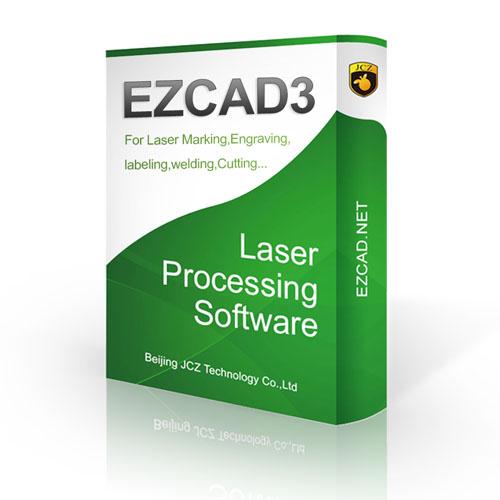
Laser marking machines require reliable software to create designs, configure marking parameters, and communicate with the laser controller. For many fiber laser marking systems, EZCAD is a commonly used software solution. If you are setting up a new machine, replacing software on an existing computer, or preparing a workstation for laser marking, understanding the ezcad download process can help you get started more smoothly.
Understanding EZCAD Software
EZCAD is laser control software commonly associated with fiber laser marking machines and compatible laser controllers. It allows operators to create text, graphics, shapes, barcodes, and other marking elements before sending the required instructions to the laser system.
The software works together with the laser controller, scanning system, and machine configuration. Because different laser machines can use different controller boards and software versions, selecting the appropriate version is an important part of installation.
Before beginning an ezcad download, users should identify their machine model, controller type, operating system, and existing software version. This information can help prevent compatibility problems during installation.
Why the Correct EZCAD Version Matters
EZCAD software is available in different versions, and compatibility can depend on the controller hardware installed in a laser marking machine. Installing an unsuitable version may result in communication errors or missing machine settings.
For this reason, users should not simply choose a random software package from an unfamiliar website. It is better to obtain the software from the laser machine manufacturer, controller supplier, or an authorized software source whenever possible.
Checking the controller board is particularly important. Many laser marking systems use a USB-connected controller, and the software needs the appropriate driver to communicate with it.
Preparing Before EZCAD Download
A little preparation can make the installation process easier. First, identify the computer that will operate the laser marking machine. Check whether it uses Windows and confirm that the computer has sufficient storage space for the software and related drivers.
Next, check the laser machine documentation. The manufacturer may provide a software package containing EZCAD, controller drivers, machine configuration files, and instructions.
It is also useful to record the current software version if EZCAD is already installed. If you are replacing an old computer, keeping a backup of existing machine parameters and configuration files can save time during the setup process.
Important information may include:
- EZCAD version
- Controller board model
- Machine configuration
- Lens information
- Calibration settings
- Laser source information
- Existing parameter files
Keeping these details available makes it easier to restore the machine after installation.
Starting the EZCAD Download
When looking for an ezcad download, always pay attention to the source. Laser marking software should come from a reliable and legitimate provider rather than an unknown file-sharing website.
A suitable installation package may contain the main software program, controller drivers, and supporting files. Depending on the machine, additional configuration files may also be required.
After downloading the package, scan the file with your security software before opening it. Avoid installing modified or suspicious versions because software obtained from unreliable sources can create security and compatibility problems.
If the laser machine manufacturer supplied the software, follow the manufacturer's installation instructions carefully.
Installing EZCAD on a Computer
Once the appropriate installation package has been obtained, installation can normally be started by opening the setup program. Follow the instructions displayed by the installer and allow the required components to be installed.
The controller driver is an important part of the process. Without the correct driver, the computer may not communicate properly with the laser controller.
After installation, connect the laser marking machine according to the manufacturer's instructions. The computer should recognize the controller if the driver and hardware are compatible.
If the software opens but cannot communicate with the machine, check the USB connection, controller driver, software version, and controller settings before making other changes.
Configuring EZCAD for Laser Marking
Installing EZCAD is only one part of preparing a laser marking system. The software also needs to work with the physical configuration of the machine.
Parameters can vary according to the laser source, material, lens, marking head, and application. Users should therefore avoid copying random settings from another machine.
For example, settings suitable for stainless steel may not be appropriate for aluminum, coated materials, plastics, or other surfaces. The correct marking parameters should be established through the machine manufacturer's recommendations and controlled testing.
Calibration is another important consideration. If the marked dimensions do not match the design dimensions, the machine may require calibration. Proper calibration helps ensure that a design created in the software corresponds accurately to the physical marking area.
Using EZCAD for Designs and Marking
After installation and configuration, EZCAD can be used to prepare marking jobs. Operators can create text, lines, shapes, logos, and other graphics within the software.
For industrial applications, users may also prepare serial numbers, product codes, dates, identification marks, and other variable information.
Before operating the laser, the work area should be prepared according to the machine manufacturer's safety instructions. The material should be positioned correctly, and the appropriate focus and marking parameters should be confirmed.
A preview or framing function can be useful for checking the position of the design before starting the actual marking process.
Common Problems After EZCAD Installation
Some users may experience problems after completing an ezcad download and installation. One common issue is that the software starts but does not detect the laser controller.
This can happen because of an incorrect driver, incompatible software version, USB connection problem, or controller configuration issue.
Another issue may occur when an existing machine configuration is missing. Installing the software does not necessarily recreate all machine-specific settings automatically. Configuration files supplied with the machine may need to be restored.
Users should also avoid changing important calibration or machine parameters without understanding their purpose. Incorrect settings can affect marking accuracy and machine operation.
Keeping EZCAD Software Organized
Once EZCAD has been successfully installed, keeping a backup of important files is a sensible practice. Save copies of machine configuration files, calibration information, and other necessary settings in a secure location.
If the computer fails or Windows needs to be reinstalled, these backups can make the recovery process much easier.
It is also helpful to record the installed EZCAD version and controller information. This creates a simple reference for future maintenance and troubleshooting.
Choosing a Reliable Laser Software Source
The source used for an ezcad download is just as important as the installation itself. A legitimate software package helps reduce the risk of installing incompatible or modified files.
If you purchased a laser marking machine, contact the manufacturer or supplier first. They can normally identify the correct software version based on the controller and machine configuration.
For businesses operating multiple laser marking machines, keeping organized software packages and configuration backups for each machine can simplify maintenance and reduce unnecessary downtime.
Final Thoughts
Completing an ezcad download is an important step when preparing a compatible laser marking machine for operation. However, successful setup involves more than simply downloading and installing software. The correct EZCAD version, controller driver, machine configuration, calibration information, and laser parameters all need to work together.
Bub
Do?

Categorias
Leia mais
Introduction: The Hype Around TOTW 7 This week’s Team of the Week could be particularly impressive, notably in defense. Both Van de Ven and Hakimi delivered standout performances, each scoring twice. Bellingham’s remarkable display in El Clásico also puts him in contention, while Putellas made a significant impact during the UEFA Nations League. Goalkeeper Standouts This...

Ошибки новичков в MLBB Каждый матч здесь — это динамичное испытание, где ключевые решения принимаются за секунды. Однако поверхностное восприятие игры как простой забавы ведёт к повторению одних и тех же промахов. Игнорирование карты оставляет команду слепой к передвижениям врага. Многие сосредотачиваются лишь на атаке, забывая, что последний удар по крипам — основа стабильного...
It's not just an inconvenience when your gate doesn't work properly. It can also affect your daily routine, your privacy and your security. Professional Sliding Gate Repair Sherman Oaks is essential for businesses and homeowners who depend on automated, smooth and secure gate systems. Local experts in Sherman Oaks can quickly and reliably restore functionality to your gate, whether it is stuck,...

This comprehensive guide compares AWS vs Azure vs Google Cloud across performance, pricing, security, AI capabilities, developer experience, and business scenarios to help you make an informed decision in 2026. Understanding the AWS, Azure, Google Cloud Platforms Before comparing them, it's important to understand what each provider brings to the market. Amazon Web Services (AWS)...

The industrial oxygen sector is poised for a remarkable transformation, with projections indicating a market size of $107.29 billion by 2035. This growth trajectory is underscored by a compound annual growth rate (CAGR) of 5.2%. Industrial Oxygen Market dynamics are being driven by a multitude of applications, particularly in healthcare and manufacturing. As industries rapidly evolve, the...