


 Crypto.

 Passport
 Conference call
 send money
 الشروط
 الخصوصية
 Sierra market
Does IPTV Work on a Raspberry Pi or Other Mini PC?
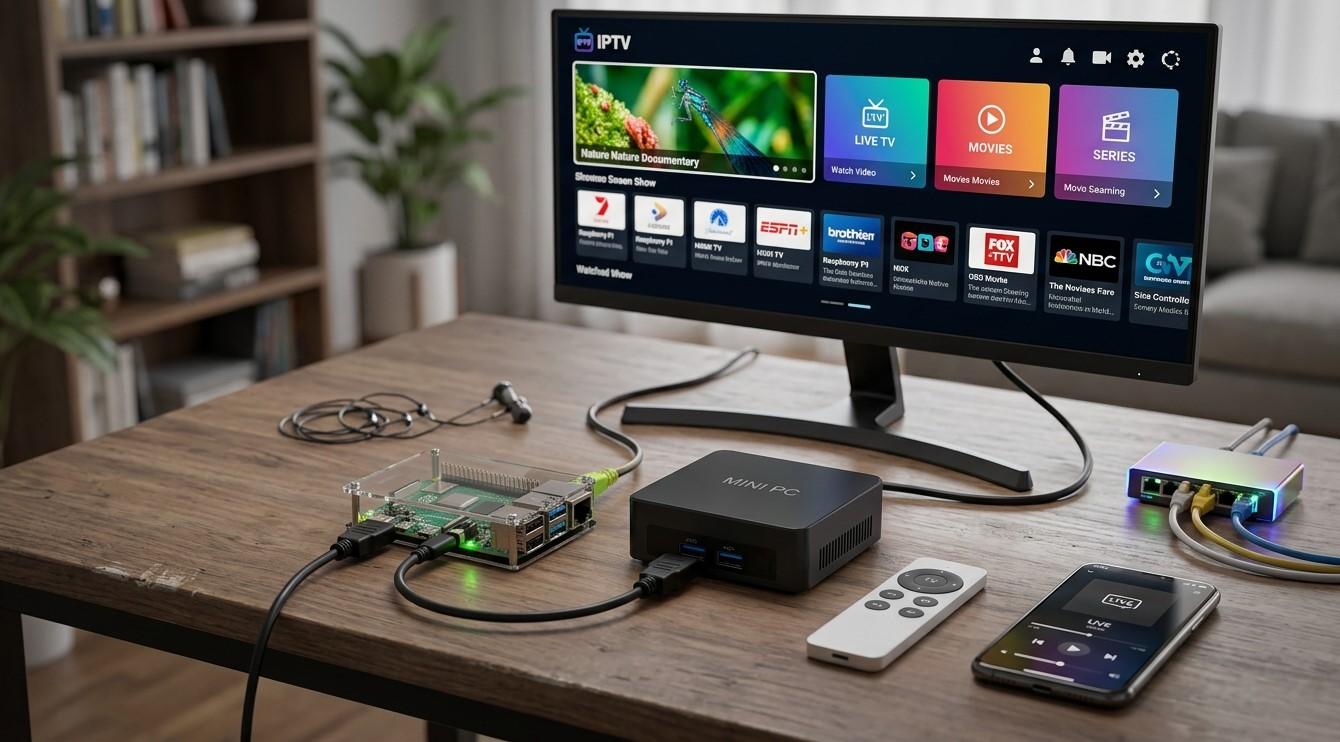
If you enjoy tinkering, a Raspberry Pi or a small mini PC can make a capable, low-power IPTV player. They’re compact, quiet, and customizable. They also take more setup than a ready-made device, and some models handle video better than others. In this guide, we’ll cover which options work, what to check before you start, and how they compare with an Indian IPTV Box for watching IPTV India channels.
Table of Contents
- Short Answer: Yes, With the Right Hardware and Software
- Check With Your Provider First
- Raspberry Pi: What Works
- Mini PCs: A More Powerful Option
- Pi vs Mini PC vs Indian IPTV Box
- Software Options
- Basic Setup Walkthrough
- Performance and Reliability Tips
- Limitations to Know About
- Security and Source Cautions
- Troubleshooting
- FAQs
Short Answer: Yes, With the Right Hardware and Software
IPTV only needs a device that can receive a stream and decode it. A Raspberry Pi or mini PC can do both, so the technology isn’t the obstacle. The practical questions are whether your hardware can decode the video formats your channels use, and whether your provider’s service works with the software you choose.
Treat it as a hobby project with real benefits, not a guaranteed plug-and-play replacement. Specifications and software support change often, so check current documentation for your exact model before buying.
Check With Your Provider First
Before you buy anything, ask your IPTV India provider:
- Which apps and players do they support? Some provide a dedicated app, some a web player, and some a playlist link that works in standard players
- Does the service rely on DRM-protected playback? Protected streams may not play on a Pi or on some Linux setups
- How many simultaneous streams does your plan allow? A new device may count toward the limit
- Is there a recommended setup for custom devices?
If a provider only supports specific apps that aren’t available for your hardware, a mini PC with a full operating system gives you more room to work.
Raspberry Pi: What Works
Different Pi models have very different video abilities:
- Raspberry Pi 4 and 400: Often a good fit for IPTV. Hardware decoding support for common formats has made these popular for media centers, though the exact formats and resolutions supported differ, so check official specifications
- Raspberry Pi 5: More processing power overall. Its video decoding capabilities differ from the Pi 4 (for example, in how it handles different codecs), so look up current documentation to see what’s handled in hardware and what falls to the processor
- Raspberry Pi 3 and older: Usually limited to standard definition or modest HD, and more likely to stutter on demanding streams
- Pi Zero and similar: Generally too limited for comfortable live video
Support for H.264, HEVC, and other formats depends on the model, the operating system, and the player. A stream that plays fine in one setup may stutter in another.
What a Pi needs:
- A good power supply. An inadequate supply is a common cause of instability. Use the official or a recommended adapter
- A quality storage option. SD cards work but can wear out or corrupt, so a reliable card, or an SSD or USB drive where supported, is a better long-term choice
- A case with cooling. Heat can throttle performance
- The right HDMI cable. Newer models use micro-HDMI, so you may need an adapter or cable
- A remote or input method. A keyboard works, but a TV remote through HDMI-CEC, a wireless mini keyboard, or a phone app is more comfortable on the couch
Mini PCs: A More Powerful Option
A mini PC is a small desktop computer, and it can run a full operating system:
- Windows mini PCs can use a provider’s web player, desktop apps, VLC, Kodi, and other tools
- Linux mini PCs run VLC, Kodi, and other players, and many are quiet and efficient
- Used office PCs (small form factor business machines) can be an inexpensive way to get solid performance
Compared with a Pi, mini PCs usually offer:
- Stronger processors and more memory, which helps with demanding or high-bitrate streams
- Faster storage, including SSDs
- More flexibility, such as running several programs at once
- Easier access to desktop browsers and web players
The trade-offs are higher cost, more power use, and in some models more fan noise. Check what video formats and resolutions your chosen processor supports in hardware, and look at reviews for the specific model.
Pi vs Mini PC vs Indian IPTV Box
| Feature | Raspberry Pi | Mini PC | Indian IPTV Box |
|---|---|---|---|
| Cost | Low to moderate, plus accessories | Moderate to higher | Moderate |
| Setup effort | Higher, hands-on | Moderate to higher | Usually low, often pre-configured |
| Power use | Very low | Low to moderate | Low |
| Software flexibility | High | Very high | Depends on the device |
| Remote-control experience | Needs setup (CEC or accessories) | Needs setup | Usually included |
| DRM-protected playback | Often limited | Often better, depends on OS and browser | Often supported, depends on device |
| Support | Community and documentation | Varies | Often from the seller |
| Best for | Hobbyists and tinkerers | Users who want flexibility and power | Households wanting simplicity |
If you’d rather not troubleshoot, a ready-made box is usually the easier road. A Pi or mini PC suits people who enjoy configuring things and want control.
Software Options
Common choices include:
- Kodi: A media center with a TV-style interface. It supports IPTV through playlist-based setups and compatible add-ons, and includes program guide support when configured
- LibreELEC and OSMC: Lightweight operating systems built to run Kodi, popular on Raspberry Pi
- VLC: A simple player that can open playlist links
- Your provider’s web player in a browser, if available (more practical on a mini PC)
- Dedicated IPTV player apps, depending on operating system and availability
- Android-based options on certain hardware, though compatibility varies
Use official sources and your provider’s documentation. Avoid add-ons, “pre-configured” builds, or images from unofficial sellers, which is covered in the security section below.
Basic Setup Walkthrough
Raspberry Pi with Kodi (general steps):
- Choose a Pi model and gather a good power supply, storage, case, and HDMI cable
- Download the imaging tool and operating system from the official or project website
- Write the OS image to your storage and insert it into the Pi
- Connect the Pi to your TV and network, ideally with Ethernet for stability
- Boot and follow the on-screen setup
- Install or enable the IPTV client features in Kodi, following current documentation, and enter your provider’s playlist link or credentials
- Load your channel list and program guide, if provided
- Enable HDMI-CEC if you want to use your TV remote
- Test several channels, including HD and busy ones
Mini PC (general steps):
- Set up the operating system and install updates
- Install your chosen player, such as VLC or Kodi, or open your provider’s web player
- Enter your login details or playlist link
- Connect to the TV by HDMI and set the display resolution
- Set up a remote or air mouse for comfortable control
- Test streams and adjust settings
Steps and menu names change between versions, so follow the current instructions for your exact software.
Performance and Reliability Tips
- Use Ethernet whenever possible. It’s more stable than Wi-Fi for live streams
- Enable hardware decoding in your player when it’s available, since it reduces load on the processor
- Keep cooling in mind. Use a good case, ventilation, and avoid enclosed cabinets
- Use quality storage. Cheap SD cards are a common failure point. Consider backups of your configuration
- Use a proper power supply, and a surge protector
- Keep software updated, but don’t update right before an important live event
- Limit background tasks on a mini PC so streaming gets the resources it needs
- Restart periodically to clear accumulated glitches
- Document your setup, including settings and add-on versions, so you can recover quickly
- Test during busy evening hours, not just quiet moments
Limitations to Know About
- DRM-protected channels may not play. Some providers use protection that certain Pi and Linux setups don’t support
- Not every app is available. A provider’s official app may exist only for certain platforms
- Hardware decoding varies by model. A format that plays smoothly on one device may struggle on another
- No built-in remote experience. You’ll configure control yourself
- More troubleshooting is on you. Community help is plentiful, but there’s no single support line for your custom build
- 4K and high-frame-rate content may exceed what an entry-level device can handle
- Updates can change behavior, and a software update may break an add-on or configuration
Security and Source Cautions
A DIY device holds your login details, so be careful with where its software comes from:
- Install only from official project websites and trusted repositories
- Avoid “free TV” builds, pre-loaded images, and add-ons from unknown sources. They often carry malware, unreliable streams, or content that isn’t properly licensed
- Don’t paste your login details or playlist link into random tools or websites
- Keep the device updated and use strong passwords
- Use your provider’s documented methods whenever possible
- Place the device on your home network thoughtfully, such as a guest network if you’re experimenting with unfamiliar software
If a source promises everything for nothing, treat that as a warning, as covered in our guide to spotting IPTV scams.
Troubleshooting
- Stuttering video: Check that hardware decoding is on, lower the resolution, test on Ethernet, and confirm the device isn’t overheating
- Black screen with audio, or no sound: See our guides on black-screen and no-sound problems. Codec support and HDMI settings are common causes
- The device reboots or freezes: Suspect the power supply, storage, or overheating
- The playlist won’t load: Re-copy the link carefully and confirm your subscription is active
- No program guide: The guide may require separate configuration or may not be provided with your playlist
- Remote doesn’t work: Check HDMI-CEC settings on the TV and device, or use another input method
- Corrupted storage after a power loss: Use a quality card, shut down properly when possible, and keep a backup image
- Add-ons stop working after an update: Check compatibility before updating, and keep notes on what you changed
FAQs
1. Can a Raspberry Pi play IPTV smoothly?
Often yes, particularly newer models with hardware video decoding, but results depend on the model, software, and the formats your channels use. Check current specifications and test with your actual channels.
2. Is a mini PC better than a Raspberry Pi for IPTV?
A mini PC usually has more processing power and software flexibility, but costs more and may use more power. A Pi is cheaper and efficient but more limited.
3. Will my provider’s app work on a Pi or mini PC?
Not necessarily. Ask your provider which platforms they support. A playlist link in a player like Kodi or VLC may work where an official app isn’t available.
4. Why do some channels not play on my Pi?
Common reasons include unsupported video formats, DRM-protected streams, or a decoder setting that needs adjusting.
5. Is a DIY device better than an Indian IPTV Box?
It depends on your priorities. A DIY setup offers control and customization, while a ready-made Indian IPTV Box is usually simpler, more convenient, and easier to get support for.
Build It Yourself or Keep It Simple
Whether you enjoy tinkering with a Raspberry Pi or prefer a ready-to-use device, the goal is the same: reliable, enjoyable viewing. Pair a dependable IPTV India subscription with the Indian IPTV Box or custom setup that suits you. Explore our IPTV plans today and find the setup that fits your home.
Bub
Do?

الأقسام
إقرأ المزيد
Evolution of Boss Content necrodrakon nocturne judicator sigmund thalassa king croaker mirage frostpike magmazard In previous seasons, players faced off against a variety of formidable foes, including the infamous Blightshroom. However, as the game evolves, many of these bosses have been phased out or retired, including the challenging Blightshroom encounter. This removal marks the end...

In the vast and ever-evolving world of Ashes of Creation, players are continuously immersed in a dynamic and richly detailed environment filled with challenges, secrets, and opportunities. One of the most exciting additions to the game is the Consumable Anvils Restored Treasure Map, a unique item that offers both a Ashes of Creation Gold thrilling adventure and valuable rewards for players bold...

À chaque fin d’année, la communauté Valorant attend avec impatience une tradition bien établie : jeter un regard rétrospectif sur les moments forts et les détails marquants de ses sessions de jeu. La version 2025 du rapport Flashback est désormais accessible depuis le 3 décembre, offrant aux fans une occasion unique de revivre leurs...
Whether you’re a minimalist backpacker, a frequent flyer, or a family planner, how you organize your luggage matters. That’s where compression packing cubes come in — the small but mighty travel essential that’s revolutionizing the way we pack. At Tripped Travel Gear, we believe every trip deserves gear you can trust. From our Carry-On Compression Cube Sets to our...

Riot Games, le studio derrière des titres populaires tels que League of Legends et Valorant, semble explorer de nouvelles directions dans son univers. Des indices laissent penser qu’un projet inédit est en cours de développement, même si les détails restent encore flous. Plusieurs annonces d’emploi mentionnent un « produit R&D non...